Mass Payments
The Mass Payment service enables you to make payments from your Skrill account to multiple recipients. The Mass Payments service should be enabled on your account before using this feature. Once the feature is enabled, you can see the Mass Payment button from the Home page > Quick Links or from Transfers > Mass Payments. To use the Mass Payments service, a payment file must be created with the details of recipients.
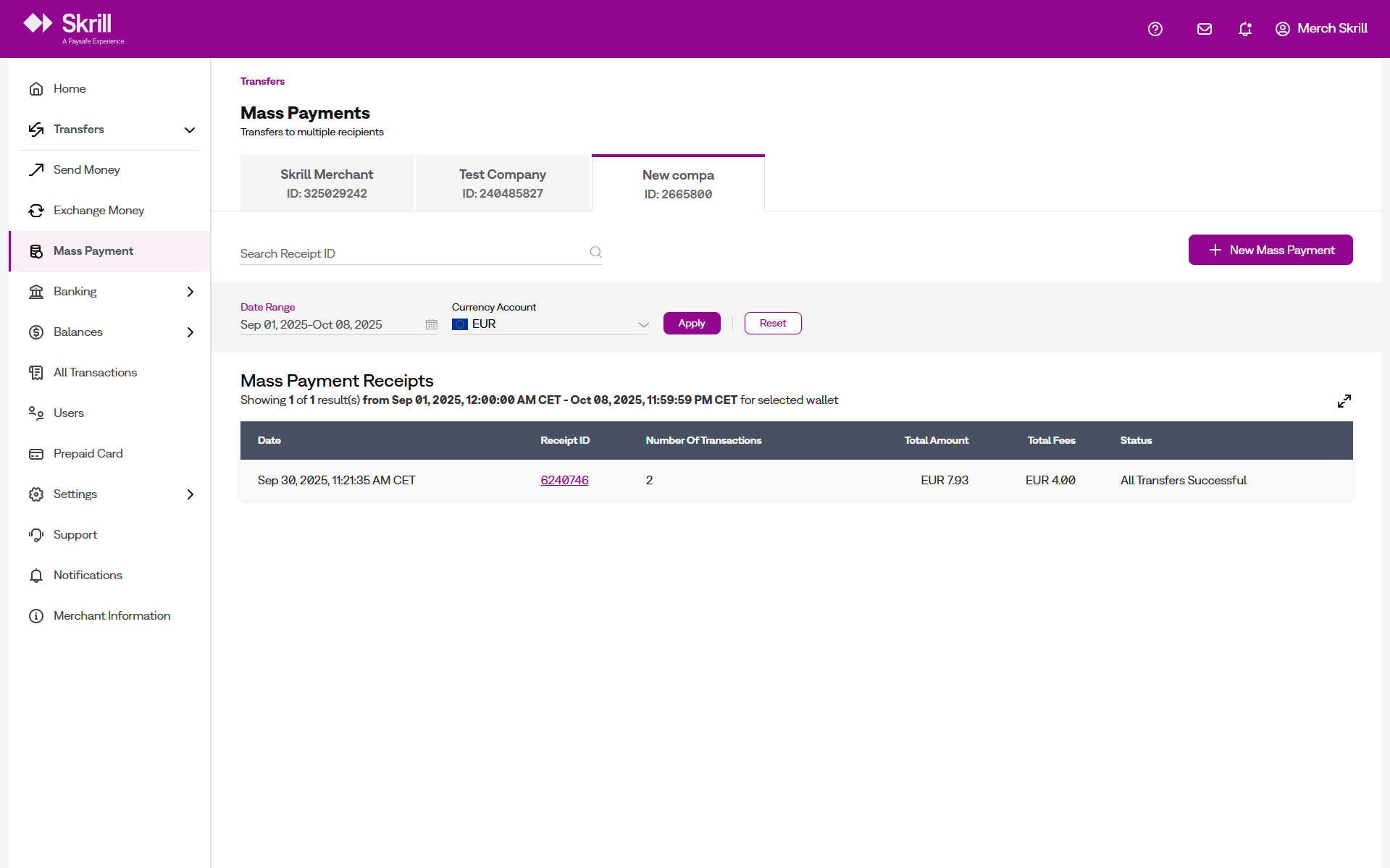
Skrill Merchant Portal supports the following pay-out options:
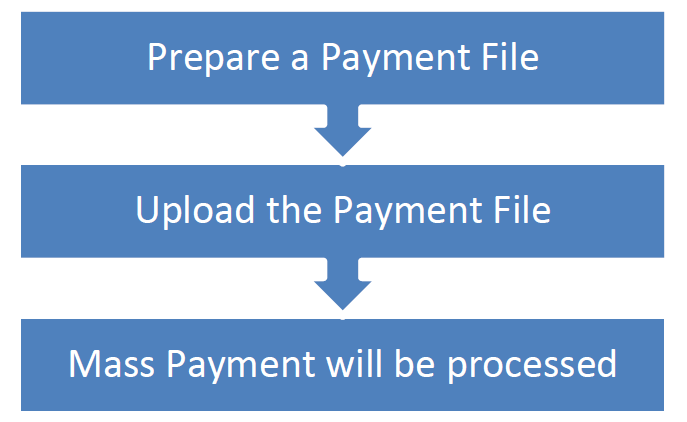
- Pay-outs using the Mass Payments option with a payments file. You can send as many varying amounts as required to hundreds of payment recipients at a time in a choice of 40 currencies (no integration is required). This method supports a maximum of 3000 payments per batch.
- Using a HTTPS API Request (standalone credits) - Automate your mass payments with Skrill. This advanced option, via an API interface, supports unlimited payments in varying amounts and different currencies. (Integration required). See the Automated Payments Interface guide for more details.
Prerequisites
Before using the mass payment feature in the Skrill Merchant Portal, you should ensure you have an application that can create worksheets in Microsoft Excel or CSV format.
Read through the following payment file restrictions if you encounter any errors in the mass payment process.
- If the number of records in the payment file exceeds 3000 or if the file's size exceeds 5 MB, then the file will not be processed, and an error is displayed.
- If you attempt to upload a file with the same name as a previous file uploaded in this account, it will be rejected as a duplicate.
- A new line character must replace row data.
- Each item in a row can be separated from the previous item using a tab, comma, or semi-colon character. No other delimiters are allowed.
- If you choose a payment currency that is different from the currency used by your Skrill account, then an exchange conversion fee will apply. Each merchant can see the FX fee applicable for their account in the Fee Schedule they had signed during the onboarding process. For example, if you have a GBP Skrill account and the payment is sent in EUR, the currency conversion fee will be applicable in your case.
Mass Payments Using a Payment File
You can create a payment file containing details of all the recipients you want to pay.
To prepare a Mass Payment file:
- Use an application like Microsoft Excel and create a blank worksheet.
- Save the file as comma-separated values CSV file (.csv).
- Add the details of the payment's recipients in the following format. The file must contain the following columns:
- Default Format
- SAFETYPAY BRASIL INSTITUIÇÃO DE PAGAMENTO LTDA Format
| 1st Column (Mandatory) | 2nd Column (Mandatory) | 3rd Column (Mandatory) | 4th Column (Optional) |
|---|---|---|---|
| E-mail address or customer ID | Currency | Amount | Reference Number or text. This column is used for an internal payment reference number or other information. |
| A 3-letter ISO 4217 currency code. For a list of supported currencies, see “ISO 4217 currencies”. | - Do not include the trailing zeroes after the decimal point. For example, 39.68, 39.6, and 39. - Do not use a digit group separator to separate thousands. Use the full stop ( .) as the decimal point. Example: 12000.45. - A maximum of two digits is allowed after the decimal point. - Two currencies (HUF, JPY) are limited to whole amounts only. | The length of your reference number should not exceed 32 characters, including spaces. |
Following is an example of the payment file. Note the commas separating records as the file is saved in comma separated format (CSV).
email_1@example.com,EUR,1234.56,reference_text_here
email_2@example.com,USD,100,reference_text_here
email_3@example.com,GBP,55,reference_text_here
email_5@example.com,SEK,500,reference_text_here
| 1st Column (Mandatory) | 2nd Column (Mandatory) | 3rd Column (Mandatory) | 4th Column (Mandatory) | 5th Column (Optional) |
|---|---|---|---|---|
| E-mail address or customer ID | Currency | Amount | CPF | Reference Number or text. This column is used for an internal payment reference number or other information. |
| A 3-letter ISO 4217 currency code. For a list of supported currencies, see “ISO 4217 currencies”. | - Do not include the trailing zeroes after the decimal point. For example, 39.68, 39.6, and 39. - Do not use a digit group separator to separate thousands. Use the full stop ( .) as the decimal point. Example: 12000.45. - A maximum of two digits is allowed after the decimal point. - Two currencies (HUF, JPY) are limited to whole amounts only. | Example values: 12345678901, 123.456.789-01 | The length of your reference number should not exceed 32 characters, including spaces. |
Following is an example of the payment file. Note the commas separating records as the file is saved in comma separated format (CSV).
email_1@example.com,EUR,1234.56,12345678901,reference_text_here
email_2@example.com,USD,100,12345678902,reference_text_here
email_3@example.com,GBP,55,12345678903,reference_text_here
email_5@example.com,SEK,500,12345678904,reference_text_here
Uploading the Payment File
After you have prepared the mass payment file, upload the file using Mass Payments option:
- Login to your Skrill account.
- Click the Mass Payment option from the Quick Links menu. You can optionally add a message to the payments/transactions by selecting the Message option. This message will be displayed in the email the recipients receive.
- Select a Currency Account.
- Click Browse and select the CSV or text file or drag the same file into the Drag and Drop/browse the file here field and drop it.
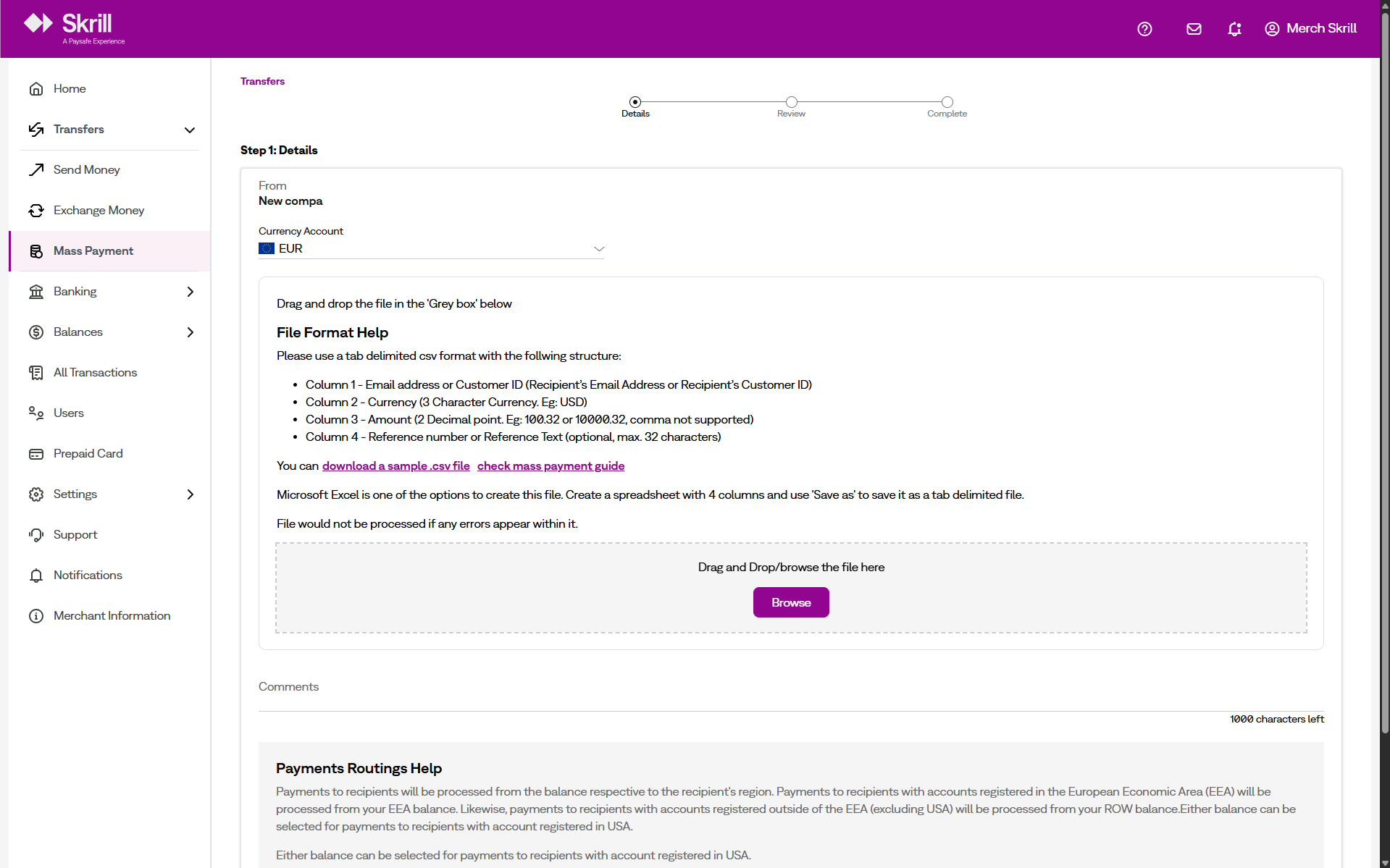
- Click Next. Once the payment file is uploaded, you can see the list of recipient details on the screen. The screen provides a preview of both valid transactions and transactions with errors. It also includes the total amount to be sent from your account and the total fees (calculated in the currency of your Digital Wallet account). Each merchant can see the FX fee applicable for their account in the fee schedule they have signed during the onboarding process.
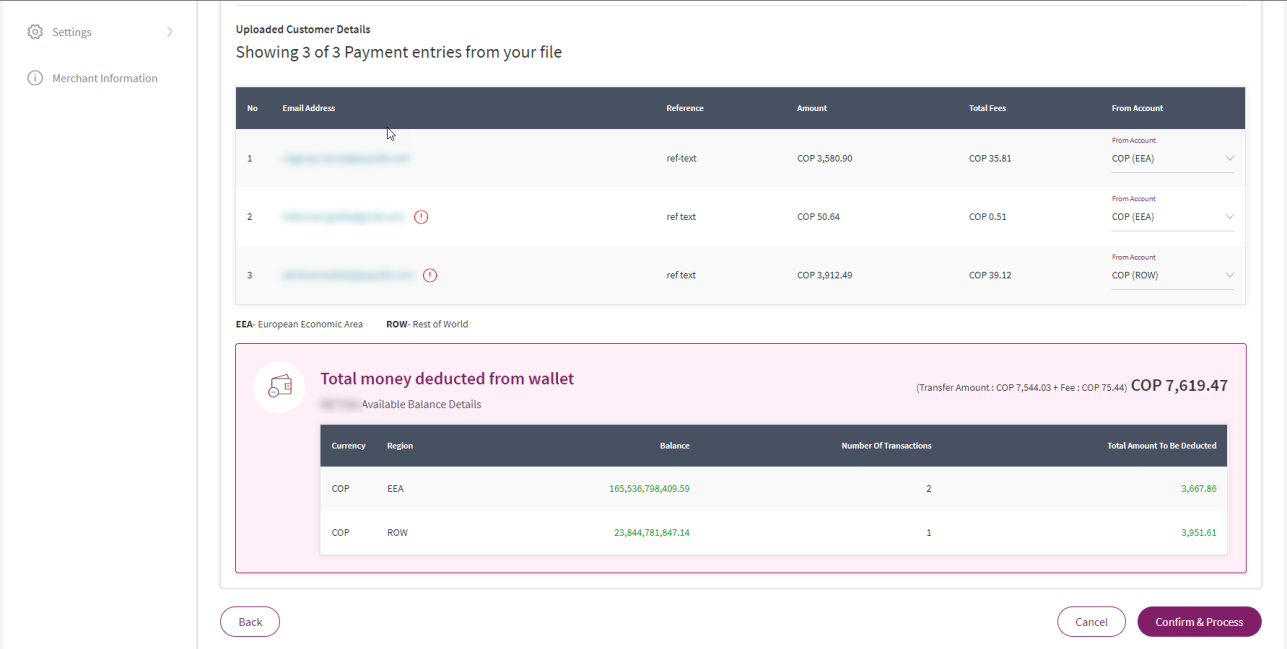
- From the From Account list, select the currency account.

- Check if the payment details are correct. To make changes click Cancel and update the CSV file and upload again.
- If there are any errors in the payment file, the Mass Payment module does not allow you to proceed further.
- If there are insufficient funds in the wallet, then you can proceed further. Select a wallet with sufficient funds.
- Click Confirm & Process. Once the file is processed, the Receipt page appears.
- The Receipt page shows a whole list of transactions and a status for each transaction; for information about the different status values (See Table 3-3: List of Payment Transaction Status Values below for information about the different status values).
- If you get any errors during the mass payments procedure, see Mass Payment Error Scenarios section for more information.
Transaction Status
| Status | Description |
|---|---|
| Processed | Payment has been made and received in the recipient's account. |
| Scheduled | Payment is scheduled to occur but has not been completed. This generally occurs in the following scenarios: The recipient does not have a Skrill account. They will be sent an email inviting them to join. Once they join, they must manually accept the payment. The recipient does not have auto-accept payments enabled and must manually accept each payment. If not accepted within 14 days, the payment is reverted to the sender. |
| Processing | The payment transaction has started but is not completed. Refresh the browser to re-check the status. |
| Error | An error occurred when attempting to make the payment. |
| Locked | A system error occurred. |
| Not enough balance | Insufficient funds in the user's account to make the payment. |
Mass Payments Error Scenarios
| Scenario | Error Message |
|---|---|
| Low primary account funds | You have insufficient funds to complete this Mass Payment. Please upload funds to your account to continue. |
| Email not linked to Skrill account | This email does not have a Skrill account. The payment will be marked as Scheduled until an account is created and the payment is accepted. |
| Region-based restriction or unsupported transaction | Funds will be scheduled and reserved from your primary account. The transaction can also be declined if it is not supported, in which case it will be reversed. |
| Mass Payment exceeds available balance (no preview alert) | Transactions will be processed while there are enough funds in your account; all subsequent transactions will fail. |
Transfer with an API Request (Standalone Credit)
You can also make mass payments using the Skrill Automated Payments Interface (API). It enables you to automate the sending of payment details from your servers to Skrill using an HTTPS request. See the Automated Payments Interface guide for more information.