Gift Cards
PaysafeCard has expanded its portfolio of cash-based payment methods in the United States, adding the acceptance of popular retail gift cards such as CVS/pharmacy and Dollar General, as well as Obucks cards.
This documentation explains how to start accepting gift card payment options as an add-on to the classic PaysafeCard integration
Where to start
To accept gift card payments on your U.S. checkout:
- In case you are an existing PaysafeCard merchant, please contact your account manager for further guidance on the activation process and contractual steps. If you are not yet transacting with us, become a partner here.
- Upon completion of the above, PaysafeCard will activate the gift cards on your USD MID (Merchant ID) and, if applicable, RC (Reporting Criteria).
- You will need to complete two technical integration changes as listed below.
Gift card payment flow
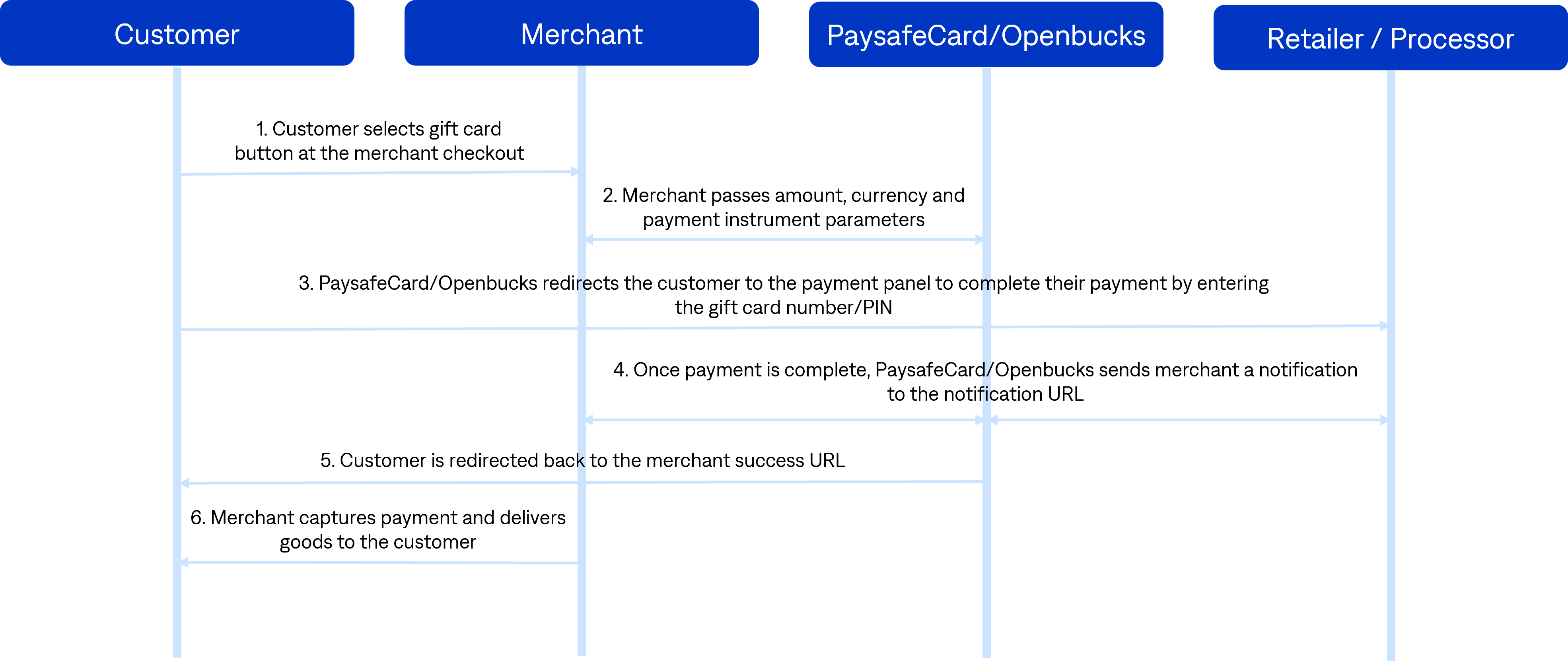
- The customer selects a gift card button at the merchant checkout (i.e. CVS, Dollar General or oBucks)
- The merchant initiates the payment by passing the amount, currency, payment instrument and other necessary parameters
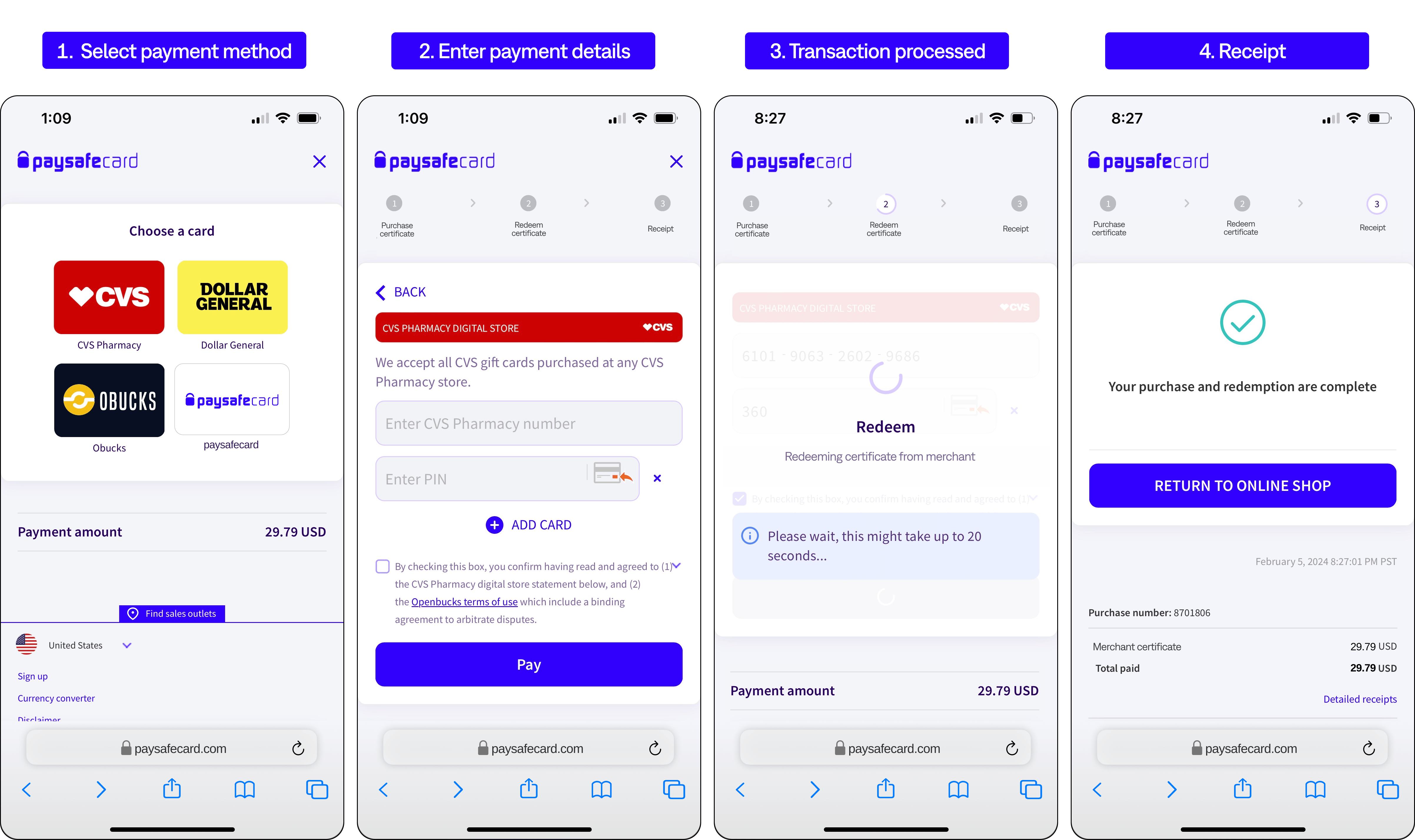
- PaysafeCard redirects the customer to the payment panel, where the customer completes the payment by entering the gift card number and PIN
- Once the payment is completed, PaysafeCard sends a payment notification to the merchant via the notification URL
- PaysafeCard redirects the customer back to the merchant via the success URL
- The merchant captures the payment and delivers the goods to the customer
Payment panel gift card redemption
Technical changes
Technical changes needed (for U.S. checkouts only):
- Required: The button must be changed on the merchant checkout by configuring the button endpoints which dynamically changes the button based on the MID, RC, country, instrument type and subtype.
- Required: The payment must be created based on the option chosen by the customer at the checkout and achieved by passing the correct instrument type and subtype when initiating the payment.
- Optional: Integrate the payment notification payload in JSON which enables the merchant to distinguish which payment instrument was used for the transaction.
Configuring the button endpoints
PaysafeCard provides .svg buttons via the following endpoints described in the section below:
To get the correct button by type of integration and country, the following parameters must be specified:
| Parameter | Description | Format |
|---|---|---|
mid (mandatory) | The Merchant ID is the unique merchant identifier and also defines the currency being used for a transaction. | default value of 10 digits |
submerchant_id (mandatory - only if any is set for the MID) | The Reporting Criteria (or submerchant id) is used to classify sub-merchants. The setup of a reporting criteria must be agreed with PaysafeCard. | max. value of 8 alphanumeric characters |
country (mandatory) | The target country. | 2-digit ISO 3166-1 |
payment_instrument (optional) | The payment instrument gives the possibility to split the logo shown between PaysafeCard or the gift card options. | "paysafecard" or "giftcard" |
payment_instrument_subtype (optional) | If a gift card was used for the payment instrument, the logo for each gift card option can be shown separately by defining a subtype. | "cvspharmacy" or "dollargeneral" or "openbuckscard" |
Below is a list of payment buttons and text options to use:




IMPORTANT:
For production, change the following in the button endpoints:
https://customer.test.at.paysafecard.com
to
https://customer.cc.at.paysafecard.com
Brand guidelines
When implementing the button, graphics or text, please follow each brand guideline or as indicated in the button configurations.
Examples of merchant checkout button and text variations:
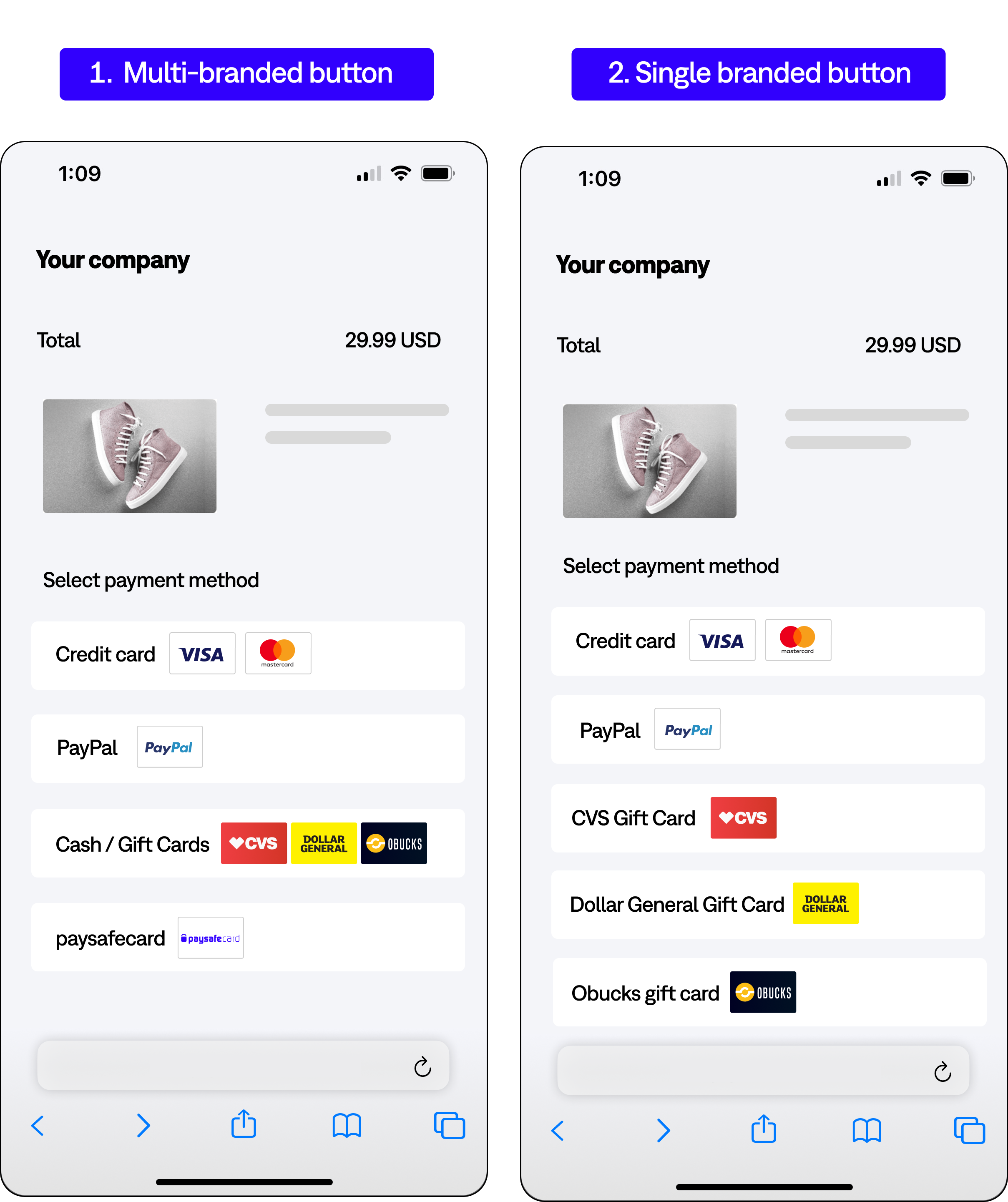
IMPORTANT: For alternative button layouts, dimensions, file formats or text please contact your PaysafeCard account manager.
Payment Process
-
The customer selects the payment method at the merchant's checkout: PaysafeCard or one of the gift card options (CVS, Dollar General or oBucks)
-
The merchant initiates the payment by sending the POST request
initiate paymentusing the correct payment_instrument and payment_instrument_subtype-
If the response gives back http20x, the merchant redirect the customer to the payment panel
-
If the response gives back http40x or htp50x, show an error message to the customer:
"Transaction could not be initiated due to connection problems. If the problem persists, please contact our (merchant) support."
-
-
PaysafeCard redirects the customer to the payment panel with
auth_url: The customer reaches the payment panel and enters a valid PaysafeCard PIN, or gift card number and PIN and clicks “Pay”- Verification on PaysafeCard or Openbucks side if the data entered is valid
- If the customer cancels the transaction on the payment panel, please show the following error message: "Transaction cancelled by user"
-
Payment notification delivery: Since the card is assigned to the transaction (transaction status "AUTHORIZED"), PaysafeCard sends a notification to the
notification_url -
notification_urlhandling: Right after the payment notification delivery, the merchant performs the GET requestretrieve payment detailsto check the status of the transaction- If the GET request
retrieve payment detailsreturns the status "AUTHORIZED", immediately perform the POST requestcapture Payment - If the response to
capture paymentis http20X and the status returned is "SUCCESS", the merchant makes a user account top up accordingly or deliver the goods
- If the GET request
-
Redirection to the
success_url: PaysafeCard redirects the customer to thesuccess_url -
success_urlhandling: The merchant partner checks on thesuccess_urlwith the GET requestretrieve payment details, the status of the transaction-
If the GET request
retrieve payment detailsreturn "SUCCESS“, the merchant shows a success message to the customer -
If the status is "AUTHORIZED", the merchant performs the POST request
capture Payment- If the response gives back http20X and the status is "SUCCESS", the merchant makes a user account top up accordingly or delivers the goods and shows a success message to the customer
- If the response gives back http40X or http50X, the merchant shows an error message to the customer
-
If the response from
retrieve payment detailsgives back http40X or http50X, the merchant shows an error message to the customer:"The transaction could not be completed. This may have happened due to a temporary connection problem. Please press the "reload" button in your browser to retry completing your transaction. If the problem persists, please contact our (merchant) support.
-
Initiating a gift card payment
Restrictions
The array restrictions containing the payment_instrument and payment_instrument_subtype gives the possibility to initiate a payment for the specific option chosen by the customer
at the merchant's checkout.
| Parameter | Type | Description | Possible values |
|---|---|---|---|
restrictions | Array | The payment restrictions array. | |
payment_instrument | String | The payment instrument gives the possibility to initiate the payment for the specific option chosen at the merchant's checkout page. | "paysafecard" or "giftcard" |
payment_instrument_subtype | String | If "giftcard" was used for the payment_instrument parameter, the payment can be initiated for a specific gift card option by defining a subtype. | "cvspharmacy" or "dollargeneral" or "openbuckscard" |
New Error Code
Error number "2039" indicates that the one of the values passed in payment_instrument or payment_instrument_subtype, is not a valid value.
{
    "code": "invalid_restriction",
    "message": "Could not convert restriction value 'giftcard_test'!",
    "number": 2039
}
Gift card payment Limits
The current minimum amount for gift card payments is: 0.10 USD
The current maximum amount for gift card payments is: 1000.00 USD
If a gift card payment is created for an amount smaller than 0.10 USD, the customer will see an error message in the payment panel.