Astropay
This section explains the Skrill payment flow for the Astropay payment method available in Argentina and India. Astropay is composed of two subcategories:
- Bank Transfer (two types are available: Direct or Manual)
- Cash / Invoice
Astropay is only available for payments of greater than or equal to 10 USD. Contact Skrill Merchant Services to enable each of the different Astropay payment methods listed above.
These categories are described in more detail below. Not all categories are supported in all the countries where Astropay is available, see Lists of banks supported by country for a list of all the Banks or Cash payment networks that Astropay supports in each country and which payment category they support. If a country is not listed, then it does not support Astropay.
Astropay integration is the same as the standard Skrill integration however the merchant's integration code must handle interim pending payment status notifications and be prepared to receive the final payment success notification some days, weeks or months later (in the case of cash/invoice payment).
The Skrill Wallet Checkout payment form can show two Astropay tabs: Cash and Bank Transfer. The Bank Transfer tab is used for both Direct and Manual bank transfer. When a customer selects the appropriate tab, they will see the logos of all supported Banks (or in the case of Cash, supported Payment Networks) and a drop-down menu where they can select the Bank or Payment Network they wish to use. If only one Bank or Payment Network is supported in the customer's country, then this logo will appear instead of Cash or Bank Transfer to increase conversion.
If the merchant passes a payment method code, they can restrict the Bank Transfer page to only show Direct or Manual banks in the drop-down menu on the Bank Transfer tab as appropriate.
Finally, this section includes a description of the refund process which differs from the standard refund process as user action is required.
Bank transfer
Direct bank transfer
This is the simplest method for customers. The payment flow is as follows:
- The customer clicks Pay by Bank Transfer on the merchant website and is redirected to the Skrill Wallet Checkout payment form.
- The customer enters their National Identity number (this field has a different name depending on the country e.g., CPF, RUT, ID, DNI, etc.)
- The customer selects a local bank in the Skrill payment form and clicks Proceed to Online Bank. The list of available banks depends on the country selected. If the bank supports Direct Bank Transfer, then the payment flow continues, otherwise the flow will be as described in Manual Bank Transfer below.
- The customer is redirected to the chosen bank's website where they can login and approve a bank transfer to make payment.
- Once payment is complete, Skrill shows a successful payment form and sends a response containing the payment status to the merchant's
status_url. - The customer clicks the button on the success form to return to the merchant website. The merchant website should check the payment status received at the
status_urlfor the payment to determine the message to show to the customer. - When the merchant receives a valid payment confirmation with a status value of 2 at the merchant's
status_urlthey can release the goods to the customer.
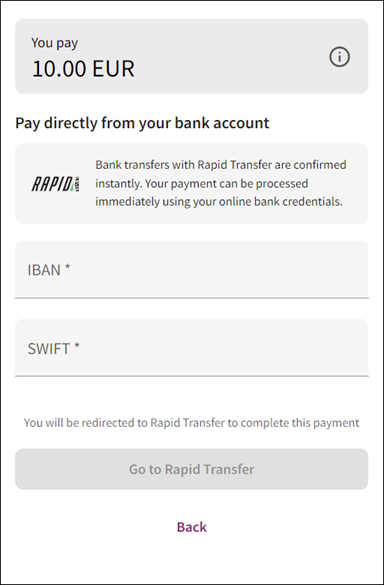
Direct bank transfer step 1 - enter IBAN and Swift and select a bank:
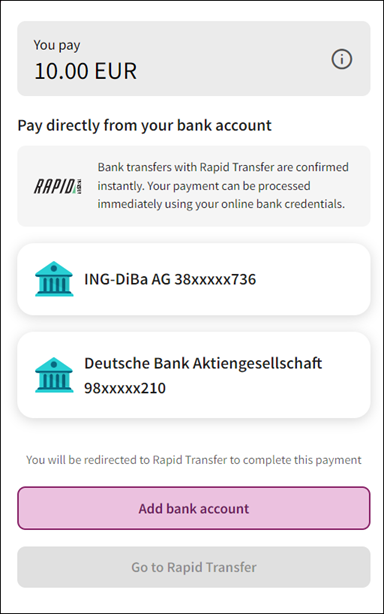
Direct bank transfer step 2 - select a bank or add bank account:
Manual bank transfer
The manual bank transfer payment flow is as follows:
- The customer clicks Send Money on the merchant website and is redirected to the Skrill Wallet Checkout payment form.
- The customer selects a local bank from a drop-down menu in the payment form (the list of available banks depends on the country selected). If the bank supports Manual Bank Transfer, then the payment flow continues, otherwise the flow will be as described in Direct Bank Transfer above.
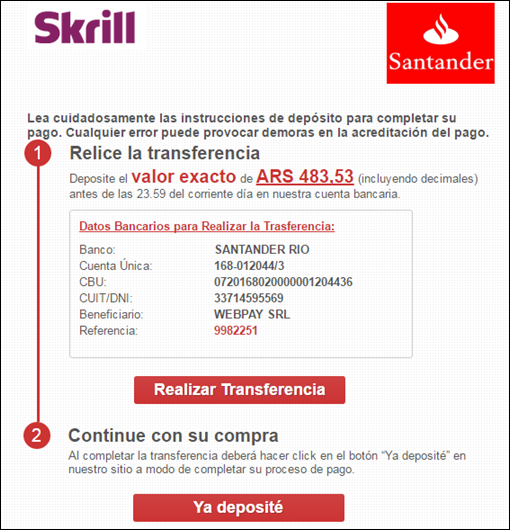
- The customer clicks Proceed to Online Bank. A form is displayed showing the manual bank transfer details required to complete the payment. Note that the amount will always be displayed in the local currency in that country rather than the currency selected in the Merchant website. The transfer details will always be displayed in the local language.
- The customer clicks on Do Transfer (Realizar Transferencia in Spanish) to be redirected to the selected bank's website where they can manually complete the payment.
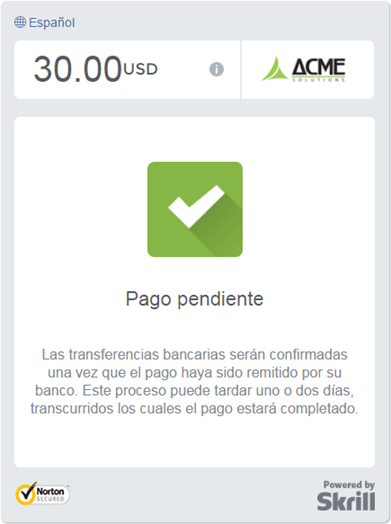
- Once the transfer is complete, the customer clicks Already Deposited (Ya Desposité in Spanish) in the Skrill payment form and a pending notice is shown on the Skrill payment form. This informs customer that payment is pending.
- The customer can now click the Continue button to return to the merchant website. The merchant website should check the payment status received at the
status_urlfor the payment to determine the message to show to the customer. - Once payment is complete, Skrill receives confirmation and sends a payment success notification to the merchant's
status_url. Note that this may take 1-2 days after the customer has made the bank transfer. When the merchant receives a valid payment confirmation with a status value of 2 at theirstatus_urlthey can release the goods to the customer.
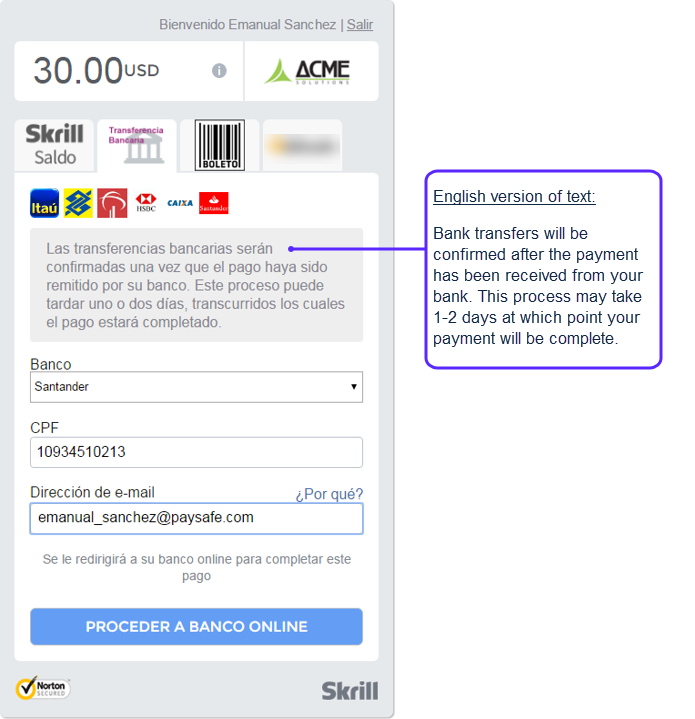
Manual bank transfer step 1 - enter name and ID and select a bank:
Manual bank transfer step 2 - bank account details for manual transfer:
Manual bank transfer step 3 - log in to bank to make a manual transfer (not shown):

Manual bank transfer step 4 - pending payment shown after clicking already paid:
Cash/Invoice
The cash payment flow is as follows:
- The customer clicks Pay by Cash / Invoice on the merchant website. They are then redirected to the Skrill Wallet Checkout Payment form.
- The customer selects a local bank from the drop-down menu (the list of available banks depends on the country selected). If the bank supports Online Bank Transfer, then the payment flow continues, otherwise the flow will be as described in Offline Bank Transfer below.
- The customer enters their National Identity number (This field has a different name depending on the country e.g., CPF, RUT, ID, DNI, etc.)
- The customer is redirected to the bank / payment network website for confirmation.
- The bank website displays a bar code that the customer must print.
- The customer goes to the bank or a store which accepts payment in cash using the bar code they were given in step 6. Alternatively, they can pay the invoice using their Online Bank.
- Once payment is complete Skrill receives confirmation. Skrill sends a payment success notification to the merchant's
status_url. - Once the merchant receives a valid payment confirmation with a status value of 2 at the merchant's
status_urlthey can release the goods to the customer.
Cash payment step 1 - multiple cash payment options available:
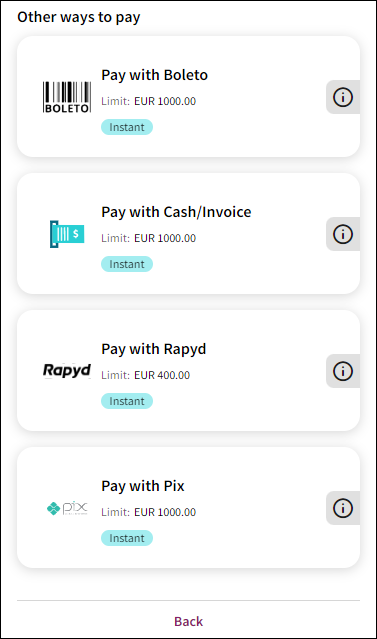
If only a single cash method is supported for the customer's country, then instead of a list of banks to select from, only the option and logo of the single payment method is shown. See the example below. For details of countries supporting cash payments, see Lists of banks supported by country.
Cash payment step 1 - single cash payment option available:
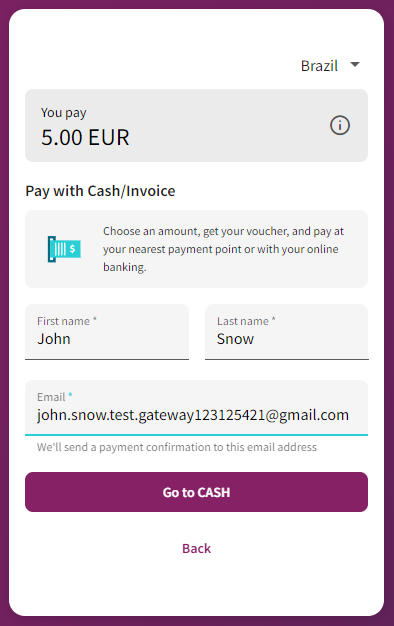
Cash payment step 2:
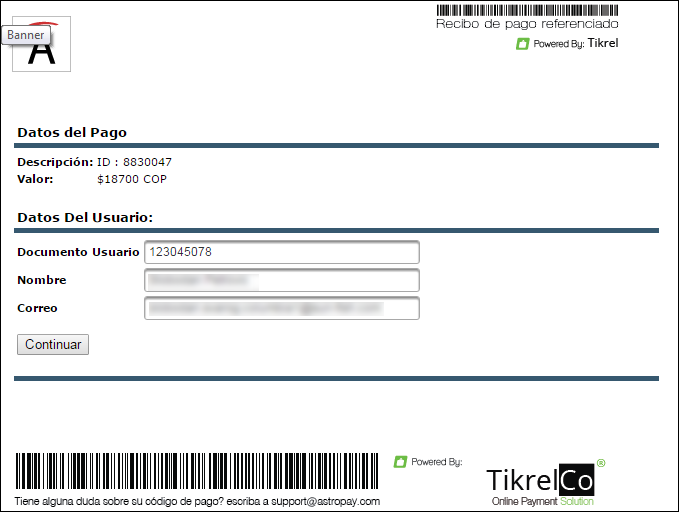
Cash payment step 3:
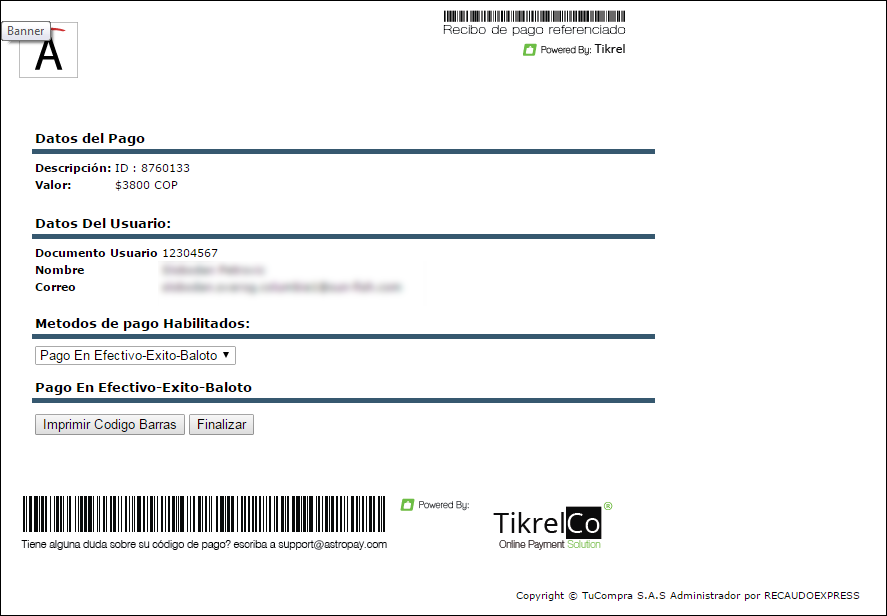
Cash payment step 4:
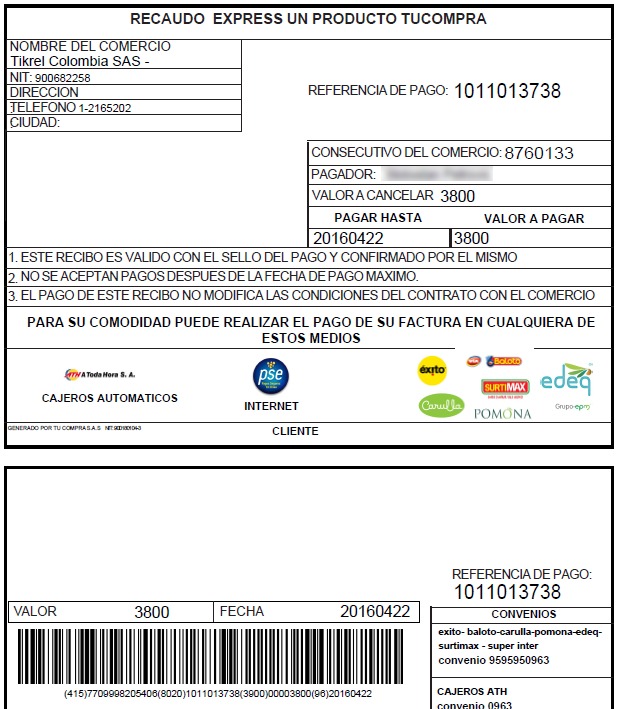
Cash payment step 5:
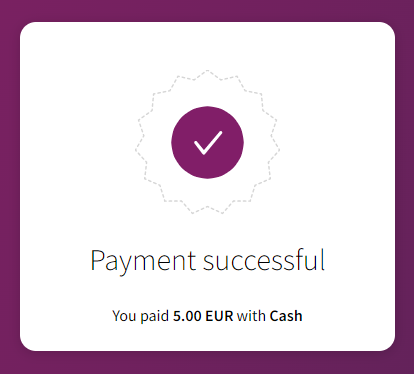
Refunds
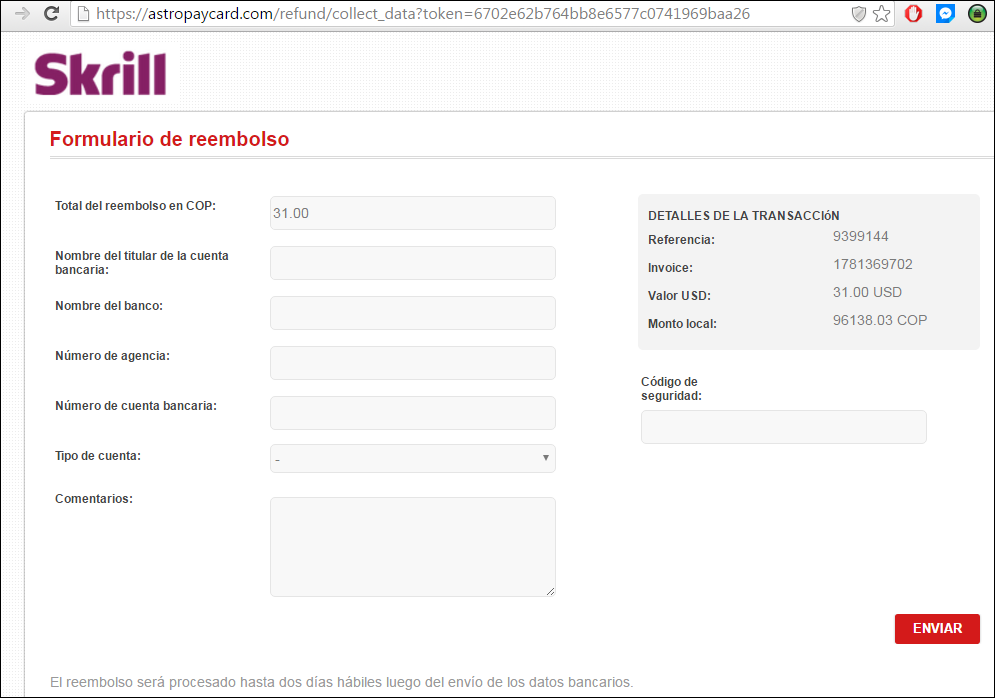
Astropay supports full and partial refunds. Customers receive an email when the merchant triggers a refund. This email contains a link to a form on the Astropay website with a Skrill logo where customers specify their name, a bank account and the security code contained in the email. Astropay will then send a refund to the customer's bank. Refunds take up to two working days from receipt of these details.
When, the refund is executed by the merchant, an email is sent to the customer and the refund is set to pending state. The refund changes state to processed when the customer provides their bank account details and Astropay sends the payment to their bank. Note that payment will still take up to two working days to reach the customer's account.
If you use the refund call in the Skrill Automated Payment Interface you must ensure that you provide a refund_status_url to record the change from pending to processed.
Step 1 - Customer receives refund email:
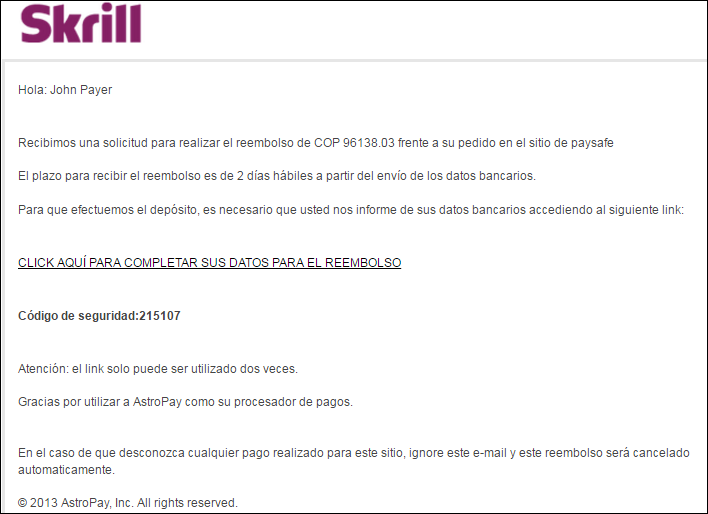
Step 2 - Customer completes refund form:
Payment method codes
The following table lists the payment method codes for Astropay and their effects. They are returned in the payment_type parameter and show the Astropay payment type used.
| Transfer Type | Effect | Payment Method |
|---|---|---|
| Direct Bank Transfer | Shows the Bank Transfer payment tab. The bank selector only shows those banks in the customer's country which support Direct Bank Transfer rather than all banks. | ADB |
| Manual Bank Transfer | Shows the Bank Transfer payment tab. The bank selector only shows those banks in the customer's country which support Manual Bank Transfer rather than all banks. | AOB |
| Cash / Invoice | Shows the Cash payment tab. | ACI |
Lists of banks supported by country
This list may change. Contact Skrill prior to implementing this payment method for an up-to-date list.
Argentina
| Bank | Type |
|---|---|
| Santander Rio | Direct Bank Transfer |
| RedLink | Cash |
| Pago Fácil | Cash |
Brazil
| Bank | Type |
|---|---|
| Itau | Direct Bank Transfer |
| Bradesco | Direct Bank Transfer |
| Banco do Brasil | Direct Bank Transfer |
| HSBC | Manual Bank Transfer |
| Caixa | Manual Bank Transfer |
| Santander | Manual Bank Transfer |
| Boleto | Cash |
The Quick Checkout payment form does not currently support Portuguese. Customers must use another supported language such as English or Spanish.
Chile
| Bank | Type |
|---|---|
| webpay | Manual Bank Transfer |
| Servipag | Cash |
Colombia
| Bank | Type |
|---|---|
| Bancolombia | Manual Bank Transfer |
| PSE | Manual Bank Transfer |
| Efecty | Cash |
| Davivienda | Cash |
| Almancenes Éxito | Cash |
| Carulla | Cash |
| Empresa de Energía del Quindio | Cash |
| Surtimax | Cash |
Mexico
| Bank | Type |
|---|---|
| OXXO | Cash |
| BBVA Bancomer | Cash |
| Banamex | Cash |
| Santander | Cash |
Peru
| Bank | Type |
|---|---|
| BBVA | Cash |
| BCP | Cash |
| InterBank | Cash |
| Pago Efectivo | Cash |
| ScotiaBank | Cash |
| Western Union | Cash |
Uruguay
| Bank | Type |
|---|---|
| Red Pagos | Cash |