Introduction
The Skrill Wallet Checkout is a secure Skrill site, where you redirect customers from your website to make a Wallet payment through Skrill. The payment gateway collects customer payment details using standard HTML forms.
After the payment is complete, the customer is returned to your website and you receive a real-time notification of the payment, which includes details of the transaction.
Requesting a test account
You may need a test account to test your integration to the Skrill Wallet Checkout. Test accounts work in a live environment; however, funds cannot be sent from a test account to a live account.
To set up a test account:
- Open an additional Skrill Digital Wallet account online via the Skrill website.
- Inform Skrill of the email address of the new account and request that this be enabled as a test account.
Connecting to the Wallet Checkout
Connecting to the Skrill Wallet Checkout requires adding Skrill as a payment method on your website's checkout or payment page. When your customer selects Skrill, you should ensure that they are redirected to the Skrill Wallet Checkout. At the same time, you will need to submit information about the payment, such as your merchant account email, amount to be paid, and several other hidden text fields.
You can use a standard HTML form to collect and pass payment and customer details to Skrill. See Example HTML Forms.
A simplified illustration of the transaction flow is shown below:
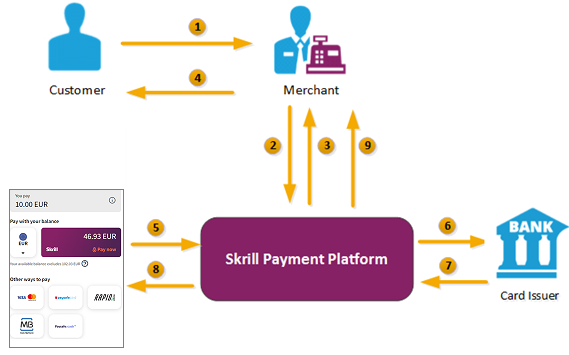
- When the customer is ready to pay for goods or services on your website, they select the Skrill payment option on your website.
- You request a session identifier (SID) by passing customer and transaction details (e.g., amount, currency, and language) to the Skrill Wallet Checkout.
- Skrill returns the generated SID.
- Using a Lightbox, redirect the customer to the Skrill Wallet Checkout and include the session identifier in the redirect URL. Skrill displays the relevant payment page.
Note: We do not support iframes. - The customer enters their payment information, plus any other details requested, and confirm the transaction.
- Skrill requests authorisation for the payment from the customer's bank, third party provider or card issuer.
- The bank/provider approves or rejects the transaction.
- We display the confirmation page, containing the transaction result, on the Skrill Wallet Checkout.
- Skrill provides you with an asynchronous notification to your status URL or IPN (instant Payment Notification), confirming the transaction details and status.
The payment process
The following image provides a more detailed view of the interaction between customer, merchant and Skrill in a typical transaction. Note that some details have been left out to simplify the diagram.
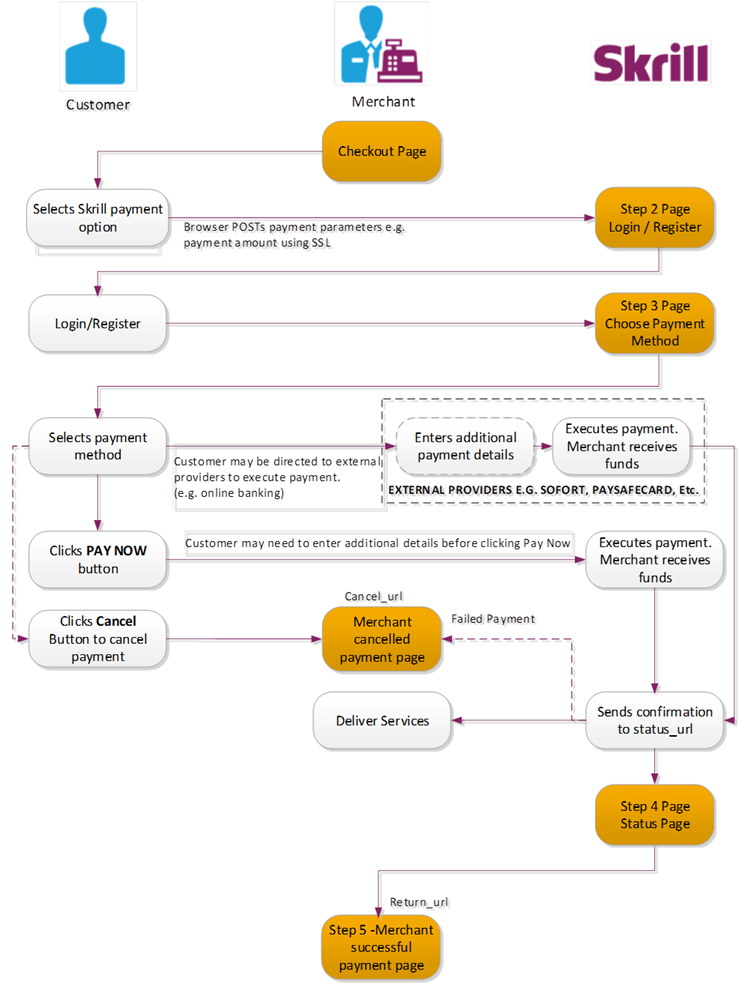
Steps in the payment process
Payment details are collected from the customer, and you are notified of the result. The customer is then automatically returned to the relevant page on your website:

Redirecting customers to the Skrill Gateway (Step 1)
When a customer is on the online checkout or payment page on your website, they should be presented with a Pay by Skrill logo or button (see examples below).


You can download a copy of these logos from the Skrill website at:
https://www.skrill.com/en/merchants/brand-centre/
When they select the Skrill button, your website should post the HTML form containing their transaction details to https://pay.skrill.com.
The HTML form should contain the hidden input fields listed in the table below.
To maximise conversion, Skrill recommends that you redirect customers to the Skrill Wallet Checkout in the same browser window. When using the standard Skrill page, the minimum width of the window should be at least 600 pixels.
Skrill Wallet checkout demonstration
If you want a demonstration of the Skrill Wallet Checkout you can access a test form at: https://www.skrill.com/app/test_payment.pl.
Transactions are processed as real payments unless you use a demo account and demo cards. Contact the merchant Services department merchantservices@skrill.com for a demo account.
Download payment method logos
Skrill logos and payment method icons that can be displayed on your website are available at: https://www.skrill.com/en/merchants/brand-centre/
You will need your Skrill Account customer ID to use this section of Skrill.com, see https://help.skrill.com/en/Article/my-money/deposits/how-do-i-locate-my-customer-id-number for details.
Parameters to be posted to the Skrill payment gateway
All URL parameters must include the scheme at the front of the URL e.g., https://. For example, instead of www.google.co.uk you would need to use https://www.google.co.uk
Merchant Details
| Field name | Description | Required | Max length | Example value |
|---|---|---|---|---|
pay_to_email | Email address of your Skrill merchant account. | Yes | 50 | info@example.com |
recipient_description | A description to be shown on the Skrill payment page in the logo area if there is no logo_url parameter. If no value is submitted and there is no logo, the pay_to_email value is shown as the recipient of the payment. | No | 30 | Your Company Name |
transaction_id | Your unique reference or identification number for the transaction. (Must be unique for each payment) | No | 100 | A205220 |
return_url | URL to which the customer is returned once the payment is made. If this field is not filled, the Skrill payment page closes automatically at the end of the transaction and the customer is returned to the page on your website from where they were redirected to Skrill. A secure return_url option is available. (See Secure return_url option.) | No | 240 | https://www.example.com/payment.htm |
return_url_text | The text on the button when the customer finishes their payment. | No | 35 | Return to main website |
return_url_target | Specifies a target in which the return_url value is displayed upon successful payment from the customer. Default value is 1.1 = '_top' 2 = '_parent' 3 = '_self' 4= '_blank' | No | 1 | 3 |
cancel_url | URL to which the customer is returned if the payment is cancelled or fails. If no cancel URL is provided, then the Cancel button is not displayed. | No | 240 | https://www.example.com/payment_cancelled.htm |
cancel_url_target | Specifies a target in which the cancel_url value is displayed upon cancellation of payment by the customer. Default value is 1.1 = '_top' 2 = '_parent' 3 = '_self' 4= '_blank' | No | 1 | 1 |
status_url | URL to which the transaction details are posted after the payment process is complete. Alternatively, you may specify an email address where the results are sent. If the status_url is omitted, no transaction details are sent. Only the following ports are supported: 80, 81, 82, 83, 88, 90, 178, 419, 433, 443, 444, 448, 451, 666, 800, 888, 1025, 1430, 1680, 1888, 1916, 1985, 2006, 2221, 3000, 4111, 4121, 4423, 4440, 4441, 4442, 4443, 4450, 4451, 4455, 4567, 5443, 5507, 5653, 5654, 5656, 5678, 6500, 7000, 7001, 7022, 7102, 7777, 7878, 8000, 8001, 8002, 8011, 8014, 8015, 8016, 8027, 8070, 8080, 8081, 8082, 8085, 8086, 8088, 8090, 8097, 8180, 8181, 8443, 8449, 8680, 8843, 8888, 8989, 9006, 9088, 9443, 9797, 10088, 10443, 12312, 18049, 18079, 18080, 18090, 18443, 20202, 20600, 20601, 20603, 20607, 20611, 21301, 22240, 26004, 27040, 28080, 30080, 37208, 37906, 40002 Note: These port restrictions apply to all Skrill status URLs. | No | 400 | https://www.example.com/process_payment.cqi OR mailto: info@example.com |
status_url2 | Second URL to which the transaction details are posted after the payment process is complete. Alternatively, you may specify an email address where the results are sent. The same port restrictions apply as for the status_url parameter above. | No | 400 | https://www.example.com/process_payment2.cqi OR mailto: info2@example.com |
language | 2-letter code of the language used for Skrill's pages. Can be any of the codes in Languages supported by Skrill. | No See Note 1, below. | 2 | EN |
psp_id | For Paysafecard transactions - offers the possibility to classify sub-merchants. Agreement with Paysafecard needed - not agreed values lead to a failed payment. | No | 16 | A205220 |
submerchant_id | Identification of the shop which is the originator of the request. This is most likely used by the payment service providers who act as a proxy for other payment methods as well. | No | 120 | Payment service provider name |
submerchant_url | URL of the website for which the payment is made. | Applicable for resellers | 240 | http://www.example.com |
Submerchant_name | The merchant's name listed on the website for which the payment is made | Applicable for resellers | 240 | Example LTD |
logo_url | The URL of the logo which you would like to appear in the top right of the Skrill page. The logo must be accessible via HTTPS, or it will not be shown. The logo will be resized to fit. To avoid scaling distortion, the minimum size should be as follows: If the logo width > height – at least 107px width. If logo width > height – at least 65px height Avoid large images (much greater than 256 by 256px) to minimise the page loading time. | No | 240 | https://www.example.com/logo.jpeg |
prepare_only | Forces only the SID to be returned without the actual page. Useful when using the secure method to redirect the customer to the payment page. For details, see Recommended secure method of redirecting the customer. Accepted values are 0 (default) and 1 (prepare only). Note: This parameter is required when enabling the Quick Checkout Secure Restriction by IP service. For details, see the Automated Payments Interface Guide. | No | 1 | 1 |
sid | Session ID (SID). This is an optional parameter containing the Session ID returned by the prepare_only call. If you use this parameter, then you should not supply any other parameters. For details, see Recommended secure method of redirecting the customer. | No | 32 | 0eb5d0f6b94badfeae5b0364b26d0288 |
rid | You can pass a unique referral ID or email of an affiliate from which the customer is referred. The rid value must be included within the actual payment request. | No | 100 | 123456 |
ext_ref_id | You can pass additional identifier in this field to track your affiliates. You must inform your account manager about the exact value that will be submitted so that affiliates can be tracked. | No | 100 | Affiliate Name |
merchant_fields | A comma-separated list of field names that are passed to the status URL when the payment is confirmed (maximum 5 fields). | No | 240 | Field1, Field2 |
Field1 | An example merchant field | No | 240 | Value 1 |
Field2 | An example merchant field | No | 240 | Value 2 |
Customer Details (used to speed up Registration / Login)
| Field name | Description | Required | Max length | Example value |
|---|---|---|---|---|
pay_from_email | Email address of the customer who is making the payment. If left empty, the customer must enter their email address. | No | 100 | payer@skrill.com |
firstname | Customer's first name | No | 20 | John |
lastname | Customer's last name | No | 50 | Payer |
date_of_birth | Date of birth of the customer. The format is ddmmyyyy. Only numeric values are accepted. This saves time for Skrill Wallet sign-up which require the customer to enter a date of birth. | No | 8 | 01121980 |
place_of_birth | Customer's place of birth (City) | No | 50 | Berlin |
address | Customer's address (e.g., street) | No | 100 | Payer street |
address2 | Customer's address (e.g., town) | No | 100 | Payer town |
phone_number | Customer's phone number. Only numeric values are accepted | No | 20 | 0207123456 |
postal_code | Customer's postal code/ZIP Code. Only alphanumeric values are accepted (e.g., no punctuation marks or dashes) | No | 9 | EC45MQ |
city | Customer's city or postal area | No | 50 | London |
state | Customer's state or region. | No | 50 | Central London |
country | Customer's country in the 3-digit ISO Code (see ISO Country Codes). | No | 3 | GBR |
nationality | The nationality of the customer | No | 50 | German |
merchant_client_id | Unique identifier of the Client with the Merchant (customer id on the merchant's end). | No See Note 2, below. | 50 | 123A123A |
merchant_client_kyc_level | Verification level of the Client with the Merchant. | No See Note 2, below. | 1 | 0 – not verified 1 – verified with documents |
merchant_client_registration_date | Date of account registration of the Client with the Merchant in a date-time format with a time-zone in the ISO-8601 standard. | No See Note 2, below. | 2016-08-22T14:30:24+02:00[Europe/Paris] 2016-08-22T14:30+02:00 2016-08-22 Notes: If the session is initiated via query parameters, special characters like "+" must be pre-URL encoded, for example: +02:00 → %2B02:00 If no timezone is supplied, the CET timezone is selected by default. If no time is supplied, the following time is selected by dedault: 00:00:00 CET |
Payment Details
| Field name | Description | Required | Max length | Example value |
|---|---|---|---|---|
amount | The total amount payable. Note: Do not include the trailing zeroes if the amount is a natural number. For example: “23” (not “23.00”). | Yes | 19 | 39.68 OR 39.6 OR 39 |
currency | 3-letter code of the currency of the amount according to ISO 4217 (see Currencies Accepted by Skrill). | Yes | 3 | EUR |
amount2_description | You can include a calculation for the total amount payable, which is displayed in the More information section in the header of the Skrill payment form. Note that Skrill does not check the validity of this data. | No | 240 | Product price: |
amount2 | This amount in the currency defined in the field 'currency' will be shown next to amount2_description. | No | 19 | 29.90 |
amount3_description | See above | No | 240 | Handing fees & charges: |
amount3 | See above | No | 19 | 3.10 |
amount4_description | See above | No | 240 | VAT (20%): |
amount4 | See above | No | 19 | 6.60 |
detail1_description | You can show up to five additional details about the product in the More information section in the header of the Skrill Gateway page. | No See Note 1, below. | 240 | Product ID: |
detail1_text | The detail1_text is shown next to the detail1_description in the More Information section in the header of the payment form with the other payment details. The detail1_description combined with the detail1_text is shown in the more information field of the merchant account history CSV file. Using the example values, this would be Product ID: 4509334. This information is also shown to the customer in their Skrill Digital Wallet account history. | No See Note 1, below. | 240 | 4509334 |
detail2_description | See above. Note not shown in the account history. | No | 240 | Description: |
detail2_text | See above. Note not shown in the account history. | No | 240 | Romeo and Juliet (W. Shakespeare) |
detail3_description | See above. Note not shown in the account history. | No | 240 | Special Conditions: |
detail3_text | See above. Note not shown in the account history. | No | 240 | 5-6 days for delivery |
detail4_description | See above. Note not shown in the account history. | No | 240 | |
detail4_text | See above. Note not shown in the account history. | No | 240 | |
detail5_description | See above. Note not shown in the account history. | No | 240 | |
detail5_text | See above. Note not shown in the account history. | No | 240 | |
kyc_sharing | Contact your Account Manager for details. | No | 1 | 0 – False 1 – True |
privacy_notice_URL | Link to the Privacy Notice URL of the merchant, which is displayed on the Skrill Checkout. | No See Note 3, below. | 240 | http://www.example.com/privacy_notice |
- The
language,detail1_text, anddetail1_descriptionparameters are not mandatory but are highly recommended for a good user experience. English is used as the default language if no language is provided. - Merchant Client fields used for additional risk screening.
privacy_notice_URLparameter is mandatory only whenkyc_sharingparameter is set to 1.
Language encoding for text parameters
All text fields use UTF-8 encoding. Note however that the Wallet Checkout can only display Latin-1 characters.
Recommended secure method of redirecting the customer
This method can be used to ensure that details of the payment are communicated securely between your server and Skrill.
We strongly recommend that you use this method for redirecting your customers to Skrill, as it does not require sending any payment parameters to their browser. This prevents customers from being able to view or modify any hidden parameters in your source code.
How to implement
To ensure that details of the payment are communicated securely only between your server and Skrill:
- Your web server makes a standard POST request with the payment parameters, using the
prepare_onlyparameter. - The Skrill server prepares a session for the payment and returns a standard HTTP(S) response.
- Your web server takes the body of the response which contains a
SESSION_IDvalue. - Using this
SESSION_IDvalue the customer can be redirected using a GET request tohttps://pay.skrill.com/?sid=<SESSION_ID>
The normal flow of events continues. This redirect must happen within 15 minutes of the original request or the session will expire.
For code examples of how to implement this, see Code integration examples.
The Skrill Payment Platform treats GET/POST requests to the payment URL identically. As a result, you can also use an HTTP GET operation in place of POST in step 1 above and pass the payment parameters as name / value pairs in the query string. Similarly, in Step 4 above you could use a HTTP POST operation and pass the SESSION_ID value from Step 3 as the sid parameter in the message body.
Skrill customer login/registration (Step 2)
When the customer submits the HTML form from their web browser, then a Skrill page displays the payment amount and payment details submitted to Skrill and presents two options: login or sign up. The two options are described in detail below.
If the pay_from_email parameter is supplied then the email address field will be pre-filled; otherwise, this field will be empty.
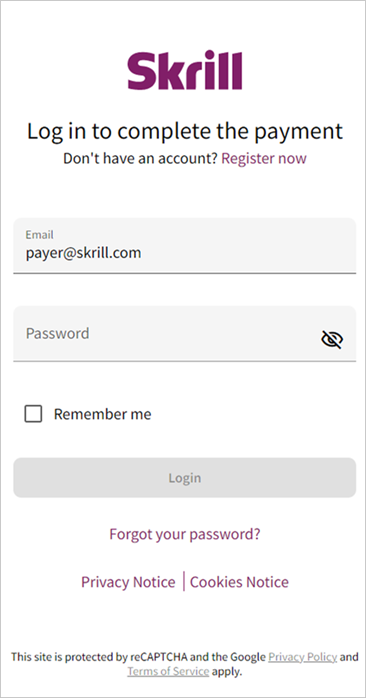
The customer enters or changes their email (if required) followed by their password, selects the Login button, and is redirected to the next step, see Step 3.
If the customer does not have a Skrill account, they can sign-up by clicking the link SIGN UP link, see Customer is not registered with Skrill.
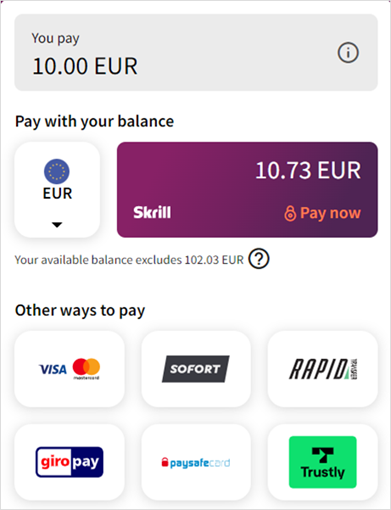
The customer can view the payment details by selecting the information icon, displayed to the right of the amount and currency. See the examples below:
Customer is not registered with Skrill
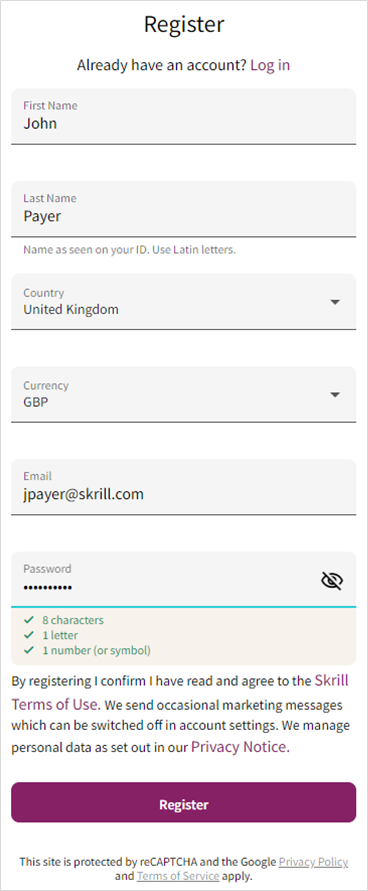
If the customer is not registered with Skrill, they can click SIGN UP. They are then presented with a registration form (see below). The form is used to register a customer for a Skrill Digital Wallet account.
Fast registration
To speed up the registration process, you can provide the following additional data to pre-fill the form: address, firstname, lastname, postal_code, city, country, date_of_birth (see above parameter tables). If the pay_from_email parameter is supplied, it will be used as the primary email address for the new Skrill account.
This form only accepts Latin-1 characters.
Skrill payment page (Step 3)
The Payment page shows the payment amount and payment details along with tabs for all supported payment methods. The tabs shown under the Payment amount (in this case 1.00 Euro) will vary depending on the customer`s country and the Payment methods selected. By default, only one payment option is provided, pay by Skrill Balance. You must contact merchant services to add additional payment methods.
There are three main payment options:
- Pay by Credit/Debit Card indicated by two card icons
- Pay by Skrill Balance
- Pay by Online Banking or Alternative Payment Methods
These payment options are described in detail next.
Pay by credit/debit card
This option allows customers to pay using a credit or debit card they have registered with their Skrill account or to add and pay with a new card.
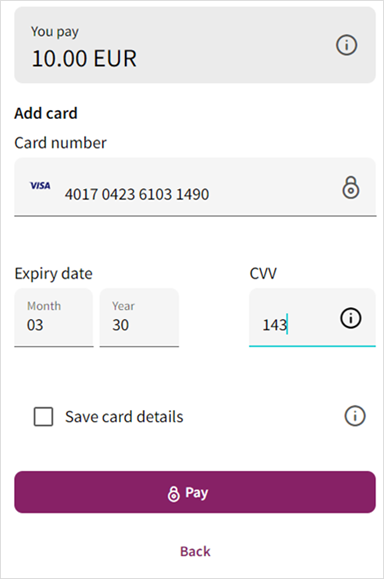
Customers can click select an existing card, enter the CVV code and click Pay Now. Alternatively, they can click + New Card to add and pay with a new card. When the customer enters their card number in the Card number field, the card type is automatically detected, and the card logo is displayed:
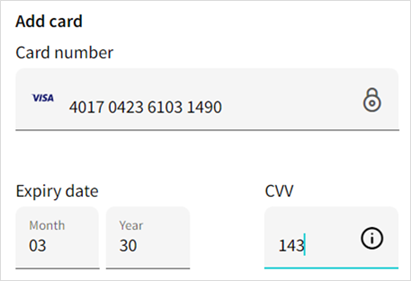
The card will now be associated with the Skrill account for future use.
The new card cannot be used to upload funds to the customer's Skrill account without verification.
To finish payment using a new card, customers enter the Expiry date and Security code for the card and click Pay Now. If the customer's card provider uses 3-D Secure, there will be additional prompts to enter these details. Once payment is complete, customers will be directed to the Skrill Transaction Status page as described below.
Skrill provide the following test credit card details (Note that these card numbers can only be used with Test merchant accounts). Note that Amex requires a four-digit CVV
| Brand | Card Number |
|---|---|
| Visa | 4000001234567890 |
| Mastercard | 5438311234567890 |
| Amex | 371234500012340 |
Pay by Skrill balance
The customer clicks the Pay now from the Skrill card. At any time before the final Pay Now button is selected, the customer can click Cancel to cancel the payment process and return to your website (to the URL provided in the cancel_url field.
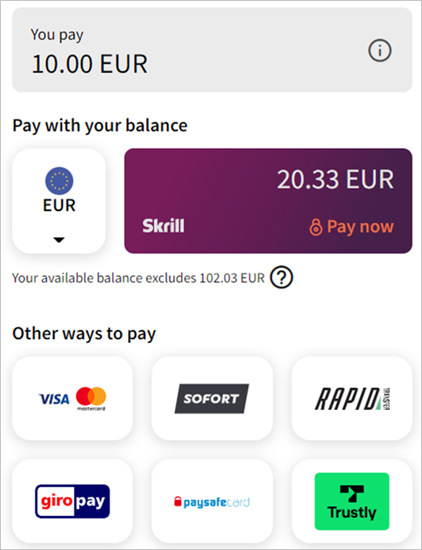
If the customer has insufficient balance for the payment, they will be prompted to use another payment method. Once payment is complete, they will be directed to the Skrill Transaction Status page as described below.
Pay by instant banking options or alternative payment methods
Skrill supports several Instant Banking and Alternative Payment methods, such as Sofort, Rapid Transfer, giropay, Paysafecard and Trustly. The available methods depend on the customer's country of registration and the Payment methods configured for the merchant's account.
To use these methods, the customer must enter their account details and click the Proceed to button to go to the external website to complete payment. Once payment is complete, the customer will be directed to the Skrill Transaction Status page.
Skrill transaction status page and return to merchant (Steps 4 and 5)
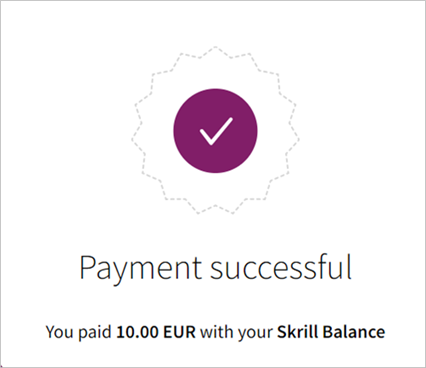
When the payment process is completed, the Successful Payment message appears (see below). The customer can now click Continue to go to the successful payment section of your website specified in the return_url parameter. You can change the button text using the return_url_text parameter. If the payment is unsuccessful then the customer is redirected to the cancel_url page.
If the cancel_url field is not filled, the customer is returned to the page on your website from where they were redirected to Skrill.
Skrill status response
When the payment process is complete Skrill sends the details of the transaction to the status_url page you provided. This is done with a standard HTTP POST request. The Skrill server continues to post the status until a response of HTTP OK (200) is received from your server or the number of posts exceeds 10. The following table shows the parameters sent to your status_url page:
| Field Name | Description | Required | Example value |
|---|---|---|---|
pay_to_email | Your email address. | Yes | info@example.com |
pay_from_email | Email address of the customer who is making the payment. | Yes | payer@skrill.com |
merchant_id | Unique ID of your Skrill account. ONLY needed for the calculation of the MD5 signature. | Yes | 100005 |
customer_id | Unique ID of the customer's Skrill account. | No See Note 1, below. | 200005 |
transaction_id | A unique reference or identification number provided by you in your HTML form. | No See Note 2, below. | A205220 |
mb_amount | The total amount of the payment in the currency of your Skrill Digital Wallet account. | Yes | 25.46 / 25.4 / 25 |
mb_currency | Currency of mb_amount. Will always be the same as the currency of your Skrill Digital Wallet account. | Yes | GBP |
status | Status of the transaction: -2 failed / 2 processed / 0 pending / -1 cancelled (see Detailed Status Description). | Yes | 2 |
failed_reason_code | If the transaction is with status -2 (failed), this field will contain a code detailing the reason for the failure. | No See Note 3, below. | 06 |
md5sig | MD5 signature. | Yes | 327638C253A4637199CEBA6642371F20 |
sha2sig | SHA2 signature. | No See Note 4, below. | dbb7101322257a311f08d1c527053058fc7e464e30bcfb4613f09053c22dd1f8 |
amount | Amount of the payment as posted in your HTML form. | Yes | 39.60 / 39.6 / 39 |
currency | Currency of the payment as posted in your HTML form. | Yes | EUR |
merchant_fields | If you submitted a list of values in the merchant_fields parameter, they will be passed back with the status report. | No | field1=value1 |
kyc_sharing | Received only if the customer gave consent | No See Note 6, below. | 1 |
- The
customer_idparameter is enabled upon activation. If you don't receive it in the response status, please contact merchant services. - If no
transaction_idis submitted, themb_transaction_idvalue will be posted in the report. - The
failed_reason_codeparameter is enabled upon activation and is part of the response status. See Failed Reason Codes for a list of reason codes. - To enable the
sha2sigparameter, contact merchant services. For more information, see SHA2 Signature. - The
payment_typeparameter is enabled by merchant services. If you don`t receive it in the response status, please contact merchant services. - The
kyc_sharingparameter is returned only upon a successful transaction.
Validating the status response
We recommend that you validate the transaction details in the status response. This can be done as follows:
- Create a pending transaction or order for a fixed amount on your website.
- Redirect the customer to the Skrill Wallet Checkout, where they complete the transaction.
- Skrill will post the transaction confirmation to your
status_urlpage. This will include themb_amount(amount) parameter. - Your website should validate the parameters received by calculating the md5 signature. If successful, it should compare the value in the confirmation post (amount parameter) to the one from the pending transaction or order on your website. You can also compare other parameters such as
transaction idandpay_from_email. - Once you have validated the transaction data you can process the transaction, for example, by dispatching the goods ordered.
If you want to restrict the receipt of status response based on the posting IP address, you should use the full list of Skrill IP ranges as from time to time Skrill may change the IP address used. Any address within any of the following listed ranges could be used. The full list of Skrill IP ranges are:
91.208.28.0/24, 93.191.174.0/24, 193.105.47.0/24, 195.69.173.0/24
and
18.156.81.39, 3.64.161.98, 18.195.181.168, 52.16.193.112, 54.228.179.122, 34.249.111.249
If you are implementing a new integration, please use the second list, as the first one will be soon deprecated.
Using the Merchant Query Interface
You can use the Merchant Query Interface to repost a status report or automatically check the status of a transaction. For details, see the Automated Payments Interface Guide.
Detailed status description
| # | Status | Description |
|---|---|---|
| '2' | Processed | Sent when the transaction is processed, and the funds have been received in your Skrill account. |
| '0' | Pending | Sent when the customers pay via an offline bank transfer option. Such transactions will auto-process if the bank transfer is received by Skrill. Note: We strongly recommend that you do not process the order or transaction in your system upon receipt of this status from Skrill. |
| '-1' | Cancelled | Pending transactions can either be cancelled manually by the sender in their online Skrill Digital Wallet account history or they will auto-cancel after 14 days if still pending. |
| '-2' | Failed | Sent when the customer tries to pay via Credit Card, but our provider declines the transaction. If you do not accept Credit Card payments via Skrill you will never receive the failed status. |
| '-3' | Chargeback | Whenever a chargeback is received by Skrill, a '-3' status is posted in the status_url and an email is sent to the primary email address linked to the Merchant's account. Skrill also creates a new debit transaction to debit the funds from your merchant account |
Sales tax / VAT option
Skrill provides a configuration setting to assist merchants to calculate sales / value added tax (VAT). Contact merchant services to enable this option. Once enabled, the following three additional parameters are sent as part of the status response to the status_urls.
| Parameter | Description |
|---|---|
payment_instrument_country | A three letter ISO 3166-1 alpha-3 code showing the country of origin of the payment instrument the customer used. For example, a Visa card for a bank in Germany would return DEU. This value will be blank if no country can be determined for the payment method. If the customer pays using their Skrill Wallet balance, then the payment_instrument_country will be the same as the country registered for their Skrill account |
country | A three letter ISO 3166-1 alpha-3 country code. If a country parameter is passed to the payment form this value will be used. If customer pays using a Skrill Wallet, then the country they selected when registering their Skrill account is returned. If none of these situations apply, then geolocation (using the customer's IP) is used to return a 3-character country code. |
IP_country | A two letter ISO 3166-1 alpha-2 code showing the customer's country as determined by Geolocation using the customer's IP. |
These values are also added to the CSV account history report. This report can be obtained using the view account history Merchant Query Interface option or via the All Transactions > Export CSV option in the My account section after logging in to your merchant Skrill account. The following table shows the column names for these parameters in the CSV file:
| Status_url Parameter | CSV column name |
|---|---|
payment_instrument_country | Instrument Country |
country | Country |
IP_country | IP country |
Test merchant
You can use our test page at https://pay.skrill.com/app/demo to access the payment form parameters. Set the Currency and Amount and enter demowallet@sun-fish.com as the Recipient Email.
Click PAY to load the Wallet Checkout.
This is the live production payment form. If you use a standard (non-test) pay_to_email merchant account and a valid credit card or standard Skrill wallet balance, then the payments will be processed and deducted from your card or Skrill wallet.
Securing your Skrill merchant account
It is important to secure your Skrill merchant in case your account password is compromised. Skrill provides several methods to enhance the security of your account:
- Restricting access to your Merchant account to a specific IP address or a list of IP addresses.
Restricting access to your merchant account by IP address
This is only useful if your ISP provides you with a static IP address or addresses. If the machine(s) that you use to log in have dynamically allocated IP addresses, then you will not be able to use this method to secure your account.
Configure this option as follows:
- Locate your IP address / addresses / address range used by the machines you wish to use to access your Skrill merchant account.
- Log in to your merchant account.
- Go to Settings > Developer Settings > website login restriction.
- Set enable service.
- Enter an IP address, or multiple IP addresses separated by spaces, or an address range in CIDR notation in the Restrict website login… field.
- Click Save.
- Log out of your account. The restrictions are now active.
Test that you can log in to your account from the machine(s) that you wish to use, and that you are unable to log in from a machine with a different IP address.
If you choose to restrict log in to an IP range, use the smallest possible address range. Do not specify a range larger than 256 IP addresses.
Additional security measures
If you are not planning to use the manual send money feature to transfer funds to other Skrill accounts, you can contact Skrill merchant services to ask them to disable this feature. Automated send money transfers using the Skrill Automated Payment Interface are disabled by default.